
Training archive
How to Word Search on a Web Page

By Tessa Morgan
A long web page can hold the answer you need while making that answer difficult to spot. Instead of scanning every paragraph, use the browser's built-in pa
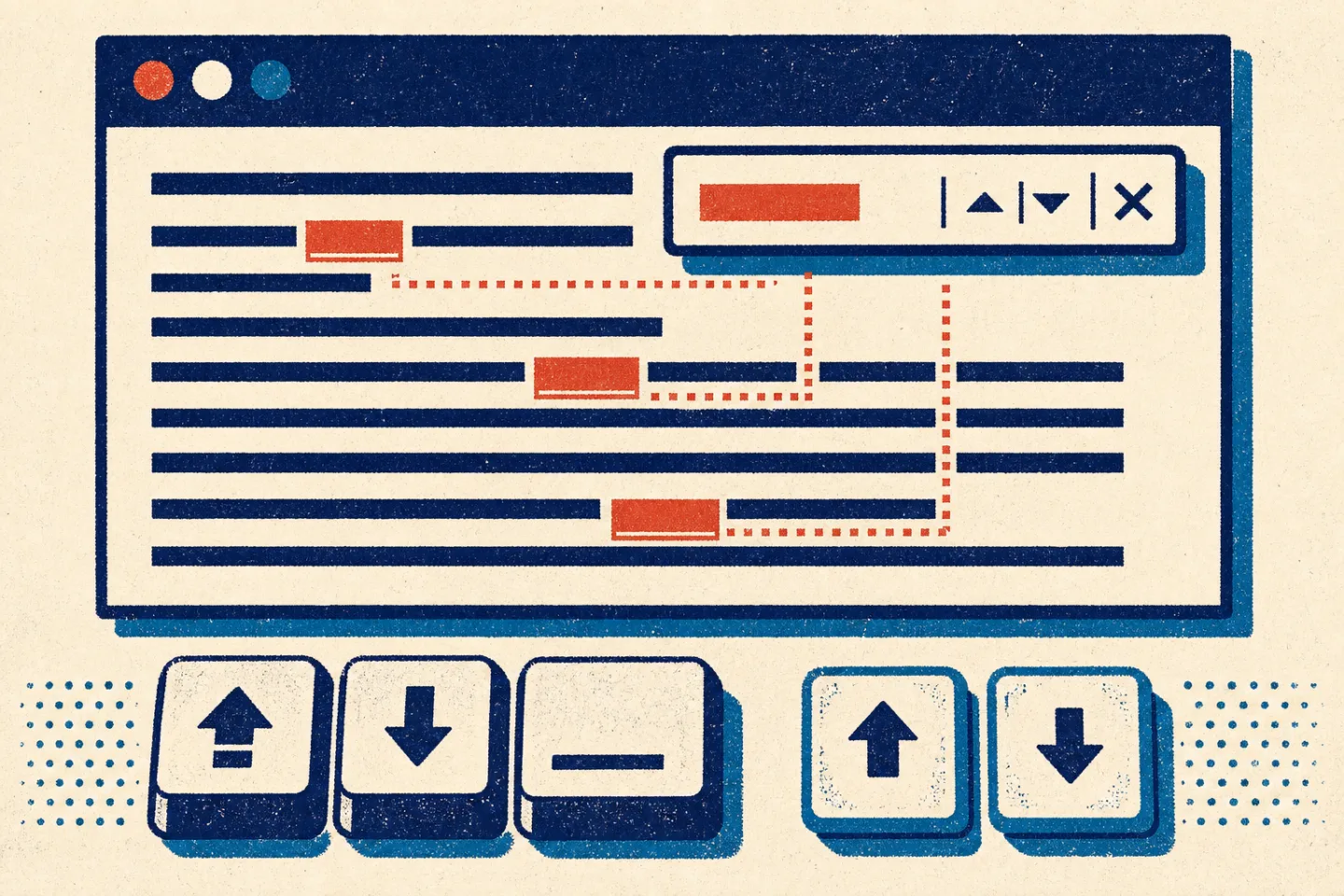
A long web page can hold the answer you need while making that answer difficult to spot. Instead of scanning every paragraph, use the browser's built-in page search to jump directly to a word or phrase. This simple technique works well for articles, instructions, policies, product details, transcripts, and other text-heavy pages.
Page search is different from a search box on a website. A website search looks across many pages, while page search checks the page open in your browser. Knowing which tool to use helps you avoid unnecessary scrolling and narrow your research more quickly.
Quick Steps to Find a Word on the Current Page
- Open the web page you want to check.
- On a desktop keyboard, press Control + F. If your keyboard uses a Command key, press Command + F.
- Type the word or phrase into the find box that appears.
- Review the match count, if the browser displays one.
- Use Enter, the arrow controls, or the next and previous buttons to move through the matches.
- Press Escape or close the find box when you are finished.
The browser usually highlights every matching piece of visible text and brings the active match into view. The highlight for the current result may look different from the other matches, which helps you keep your place as you move down the page.
How Page Search Works
Built-in page search compares the characters you type with text available in the current document. It is best at finding an exact word, a distinctive part of a word, or a short phrase. It does not understand the meaning behind your query in the way a broader search tool might.
For example, searching for schedule will not necessarily find a section that uses only calendar. If the first query returns no useful match, try a synonym, a shorter phrase, or the most distinctive word in the idea you are seeking.
Move Through Every Match
A page may use the same word in navigation, captions, headings, and body copy. Do not assume the first highlighted result is the relevant one. Move through each match and read the surrounding sentence or heading. The nearby context tells you whether you have found the right section.
Enter commonly advances to the next result. Shift + Enter often moves to the previous result. The find box may also include up and down arrows. Because browser interfaces differ, use the visible controls when a keyboard command does not behave as expected.
Choose a Useful Search Term
The best query is specific enough to reduce irrelevant matches but simple enough to appear in the text. A common word such as the may produce too many results. A full sentence may fail because the page uses slightly different punctuation or wording. Start with a distinctive noun, name, number, or two-word phrase.
If you are checking instructions, search for the object or action involved. If you are reviewing a policy, search for a term used in the relevant section. If you are comparing specifications, search for the measurement, feature, or label rather than a general word such as details.
How to Search on a Mobile Browser
Mobile browsers usually place page search inside their main menu because there is no standard keyboard shortcut. Open the page, tap the browser menu, and look for an option labeled Find on page, Find in page, or simply Find. Type your term, then use the on-screen arrows to review each match.
The menu icon and wording can vary by browser and screen size. If the option is not immediately visible, scroll through the menu or open its additional actions. Keep the page open while you search; returning to a general search field may search the wider web instead of the current page.
Why a Word May Not Appear in the Results
A zero-match message does not always mean the information is absent. Page structure, spelling, loading behavior, and content format can all affect what the browser can find. Work through the likely causes before giving up.
The Wording Is Different
The page may use a plural, abbreviation, alternate spelling, or related term. Search for the root of the word to catch more variations. For example, a shorter fragment can find both singular and plural forms. Remove punctuation from a phrase, try one important word at a time, and check for hyphens or spaces.
Capitalization usually does not matter in basic page search, but behavior can vary. If a term still does not appear, try the capitalization shown in a heading or label. Also check easily confused characters, such as the letter O and the number zero.
The Content Has Not Loaded
Some pages add text only after you scroll, select a tab, expand a question, or open a menu. Wait for the page to finish loading, reveal the relevant section, and search again. If the page has a Show more control, activate it before searching for text that may be below the initial excerpt.
The Text Is Inside Another Format
Words shown inside a photograph, scanned document, video, or graphic are not ordinary page text. The browser may be unable to find them. A document viewer can often search selectable text, but a scan made only of images may require text-recognition software before its words become searchable.
Better Search Techniques for Long Pages
A deliberate query sequence works better than repeatedly guessing. Begin with the most distinctive term you expect to see. If it returns no matches, shorten it. If it returns too many, add a second word. Read the heading above each promising result so you understand where the match sits within the page.
- Search a key noun first. Use the subject of the question rather than an entire question.
- Try a short phrase. Two or three exact words can separate a relevant passage from repeated navigation text.
- Use visible labels. Search for wording from a table of contents, menu, form label, or section heading.
- Check alternate forms. Try singular and plural forms, abbreviations, and common synonyms.
- Review nearby context. A highlighted word alone may not answer the question.
Searching a Page Versus Searching a Website
Use page search when you know the information should be on the page already open. Use a website's own search feature when you need to locate which page covers the subject. If the site has no search feature, a general search tool can help locate a page, after which built-in page search can pinpoint the passage.
Keyboard and Accessibility Tips
Page search is useful for people who browse without a mouse. Open the find box with the keyboard, type the term, and move through results with Enter or the available controls. Keep an eye on the browser's focus indicator so you know whether keystrokes are affecting the find box or the page.
A screen reader may announce the number of matches or move reading focus to a result, but behavior depends on the browser, page structure, and assistive settings. Headings navigation can be a helpful companion to word search. First move through the headings to identify the relevant section, then search for a precise term within that area.
If highlighted text is difficult to see, use the browser or operating system's contrast, zoom, and text-size controls. Zooming the page should not change which words are found. It can make the active result and its surrounding context easier to read.
A Practical Troubleshooting Checklist
- Confirm that you are searching the current page, not using a website or web search field.
- Check the spelling and shorten the query to its most distinctive word.
- Try a synonym, abbreviation, plural, or unhyphenated form.
- Wait for the page to load and expand any collapsed sections.
- Move through every match instead of stopping at the first one.
- Determine whether the text is selectable or trapped inside an image, video, or scan.
- Reload only after saving any information entered on the page.
Use Page Search as a Reading Tool
Word search is most effective when it supports careful reading rather than replacing it. Use it to reach the likely section, then read enough surrounding material to understand qualifications, exceptions, and definitions. A match can point to an answer, but context determines what the answer means.
For most tasks, the process is straightforward: open the find box, enter a focused term, review each match, and adjust the wording if needed. Once you separate page search from website search and account for hidden or non-text content, long pages become much easier to navigate.