
Training archive
How to Search a Website

By Tessa Morgan
Searching within one website is useful when you need a particular page, phrase, document or product but the site’s navigation does not reveal it. The right
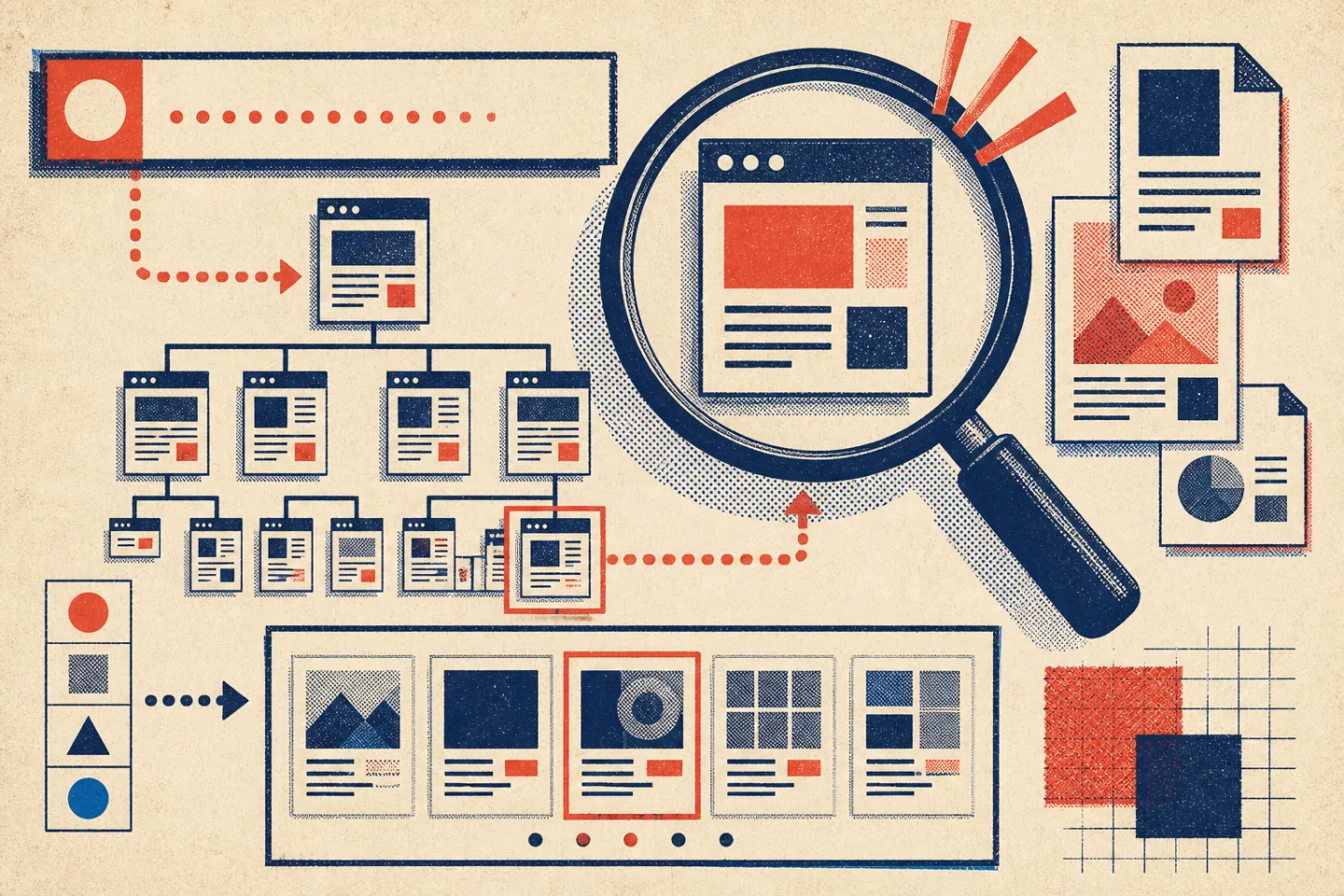
Searching within one website is useful when you need a particular page, phrase, document or product but the site’s navigation does not reveal it. The right method depends on whether you are checking the page already open, browsing the site’s own catalogue, or searching pages indexed by an external search engine.
Start with the narrowest method. Search the current page for a known word, use the site’s own tools for categories and filters, then move to a domain-restricted web search. This order is quick and helps you distinguish between content that is hard to find and content that is no longer available.
Choose the Search Method
Before entering a query, decide what you know about the target. A distinctive sentence calls for an exact-phrase search. A model number belongs in the site’s search field. A report may be easier to find by file type. An unfamiliar topic may require browsing categories before you know which words the publisher uses.
- One word on the open page: use the browser’s find command.
- A page, article or product: try the site’s search field and filters.
- An indexed page anywhere on the domain: use a domain-restricted query.
- An older or removed page: check the sitemap, direct URL and archived copies.
Find a Word on the Current Page
Use the browser’s find command when the correct page is already open. On a keyboard, the usual shortcut is Ctrl and F or Command and F. On a phone or tablet, open the browser menu and choose the option labelled Find on page or similar.
Enter the shortest distinctive part of the wording. If you need “delivery restrictions”, searching for restrictions may work better because the page could use “shipping restrictions”. Move through each match and read the surrounding paragraph. A match in a menu or footer may not be the information you need.
This method searches only text loaded on the current page. It will not search other pages, and it may miss text hidden inside an unopened panel or content loaded only after an interaction. If there is no match, try a spelling variant, singular form or related term before changing methods.
Use the Website’s Own Tools
Look for a magnifying-glass icon or a search field in the header, menu, sidebar or footer. On a small screen, the control may sit inside the main navigation menu. Search with the most identifying detail you have: an article-title fragment, catalogue code, error message, document name or uncommon phrase.
Short, concrete queries usually perform better than full questions. If how do I change the address on my account produces weak results, try change address or account address. Remove broad words such as “help” and “information” unless they are part of an exact title.
Browse Menus, Categories and Filters
Navigation is useful when you do not know the site’s terminology. Begin with the closest main section, then follow category pages, breadcrumbs and related-page links. A support site may group material by task or issue; a publication may group it by subject; a shop may group it by product type.
After searching, apply only filters that rule out clearly irrelevant results. Content type, topic, date, availability and language are common examples. Add the most important filter first and check what remains. If the list becomes empty, remove conditions one at a time rather than starting over.
Sort by relevance when the query is precise. Sort by date only when recency matters, because a newer page may be less relevant than an older reference page. Also inspect breadcrumbs and category labels on a useful result; they often provide a better route to related material than another search.
Search One Domain from a Search Engine
When internal search is missing, unavailable or too broad, restrict an external search to the website’s domain. Enter site:example.com search terms, with no space between site: and the domain. For example, site:example.com returns asks for indexed pages on that domain related to returns. Searching within a specific domain is particularly useful for older articles and documents that are not prominent in navigation.
Use the exact host shown in the address bar if results are too broad. Searching site:help.example.com limits the results to that support subdomain, while site:example.com may include the whole site. An official Advanced Search page provides another way to apply a domain restriction without remembering the operator.
Refine the Query
Put quotation marks around wording that must appear in the same order. The query site:example.com “terms of service” is more precise than the same words without quotation marks. This works well for a title, a sentence fragment, a distinctive error message or a named document.
Place a minus sign directly before an unwanted word. For example, site:example.com training -jobs looks for training pages while reducing results about vacancies. Add exclusions cautiously: the excluded word might also appear on the page you want. Start with the domain and one strong term, then refine only if the results remain broad.
Use filetype:pdf when you expect a PDF, or replace pdf with another likely extension. A query such as site:example.com filetype:pdf annual report targets documents rather than ordinary pages. Search for words likely to appear in the title, such as “guide”, “manual”, “policy” or “report”, when the exact filename is unknown.
External search results are not a complete inventory. A page may be new, excluded from indexing, protected by a sign-in, or removed. A site-restricted keyword search can locate indexed material, but failure to find a result does not prove that the page never existed.
Handle Missing or Poor Results
Try the Publisher’s Vocabulary
Search systems match words, so terminology matters. Try singular and plural forms, abbreviations and full names, hyphenated and unhyphenated forms, and common British and American spellings. Replace a broad concept with wording visible elsewhere on the site. A menu label, form field or related article title can reveal the preferred term.
If you remember part of a sentence, search that phrase in quotation marks. If you remember only the subject, combine two specific terms rather than adding a long description. Check spelling, remove punctuation, and test a model code both with and without spaces.
Check the Sitemap and Direct URL
An XML sitemap can expose published URLs that are not easy to reach through menus. Common locations include example.com/sitemap.xml and example.com/sitemap_index.xml. The site’s robots.txt file may also point to its sitemap. A sitemap index can separate pages, articles, products or other content into smaller lists.
A sitemap entry is only a lead. Open the URL to confirm that it works and that the page contains the expected information. Sitemaps may contain stale entries, and some live pages may be absent. When you know an old URL, test it directly and note whether it opens, redirects elsewhere or returns an error.
Use Archived Material Carefully
An archived copy may help when a page has disappeared or changed substantially. Search with the exact old URL first. If that fails, try the address without tracking parameters or test its parent section. Archived pages may omit images, interactive controls or styles, so treat them as partial records.
Do not rely on an old copy for current policies, technical instructions or other changeable facts. Use it to recover context, a former title or a likely navigation path, then verify any current claim on an active source.
Search Shops and Help Centres
For a shop, begin with the product type or model code, then narrow by essential features such as size, material, compatibility or availability. Apply price or rating filters later, after unsuitable products have been removed. If a discontinued item no longer appears internally, search the domain for its exact model code or manual.
For a help centre, copy the exact wording of an error code, button or setting. Version labels matter: instructions for an older interface may no longer match what you see. Related articles and breadcrumbs can reveal the category name, which can then replace a vague query such as “not working”.
Make Your Own Website Easier to Search
Use menu labels that reflect visitors’ language, not internal department names. Give important pages descriptive titles, place them in a clear category, and link to them from relevant pages. Breadcrumbs help visitors move back to broader sections without repeating a search. Methods such as card sorting and tree testing can test whether people understand the proposed groupings.
An internal search page should repeat the query, show clear titles and short descriptions, and explain when no results match. Useful recovery options include removing filters, checking spelling, browsing a nearby category and suggesting a recognised synonym. Filters should appear only when the content collection is large enough to justify them.
Review repeated zero-result queries. They may reveal that useful content uses different wording, an important page is missing, or a technical setting prevents a valid page from appearing. Fix synonyms, labels and internal links before creating new pages. Not every unusual search deserves its own article.